How to Implement Browser Updates: A Step-by-Step Guide
Automated browser updates often fail silently when group policies conflict with silent install flags, leaving systems exposed to known exploit chains.

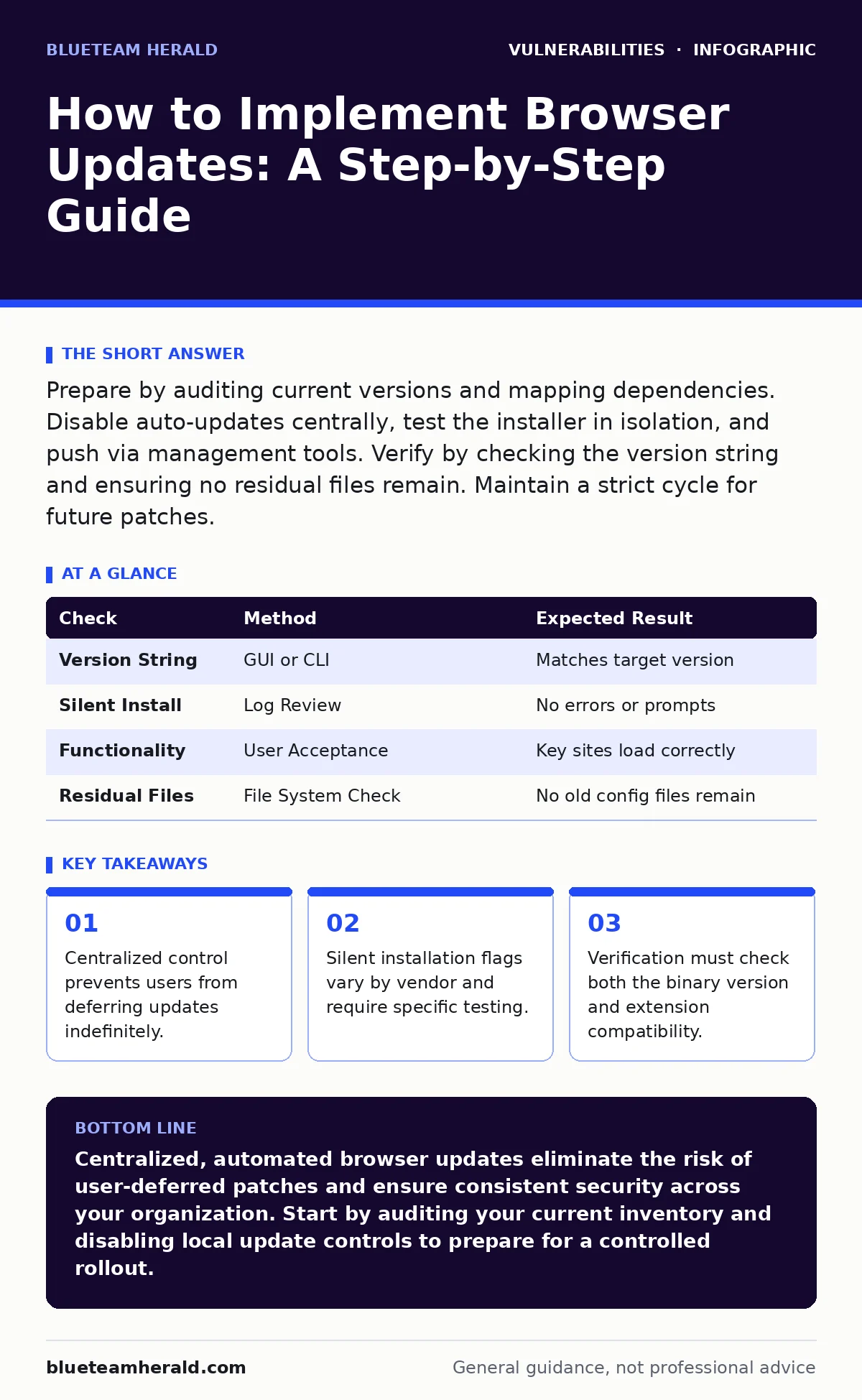
Prepare by auditing current versions and mapping dependencies. Disable auto-updates centrally, test the installer in isolation, and push via management tools. Verify by checking the version string and ensuring no residual files remain. Maintain a strict cycle for future patches.
Audit Current Browser States
You cannot manage what you do not see. The first phase of any update strategy is establishing a baseline of what is currently running on your endpoints. Browsers often run multiple instances or versions, especially in enterprise environments where legacy applications depend on specific rendering engines. You need to know exactly which versions are present before you attempt to change them.
Use your existing asset management or vulnerability scanning tools to inventory every browser installed on your network. Look for hidden installations, such as portable versions or secondary profiles that bypass standard directory checks. If your inventory shows a wide variance in versions, your rollout will be more complex. A narrow variance allows for a simpler, faster deployment.
Disable Local Update Controls
Before you push a new version, you must neutralize the local update mechanisms. If you allow users to control their own updates, they will defer them, ignore them, or disable them entirely. This creates a fragmented environment where some machines are patched and others are not. Your goal is consistency, not choice.
Locate the settings that control automatic updates for each browser type. In Chrome, this is often managed through group policy or enterprise policy files. In Firefox, it is a preference file that can be locked. You need to ensure that the browser does not attempt to download or install updates on its own. This prevents version conflicts during your controlled rollout.
Imagine a scenario where a user manually updates their browser to a version that is incompatible with your internal authentication proxy. By disabling local controls, you force the browser to wait for your verified package. This centralization is the foundation of reliable patch management.
Step 1: Prepare the Installer Package
You need a clean, tested installer for each browser version you intend to deploy. Do not use the default web installer, as it often includes unwanted toolbars or search engine defaults. Instead, use the enterprise or system-wide installer provided by the vendor. These installers are designed to be silent and do not prompt the user for input.
Download the installer to a secure internal repository. Verify the cryptographic signature of the file to ensure it has not been tampered with. Create a script that runs the installer with the correct silent flags. For example, Chrome uses specific command-line arguments to suppress UI dialogs. Firefox uses a different set of flags. Test this script on a single, isolated machine first.
If the script fails on the test machine, it will fail on hundreds of machines. You must confirm that the installation completes without error and that the browser launches correctly. This step removes the guesswork from the mass deployment phase.
Step 2: Deploy to a Pilot Group
Never push a browser update to your entire organization at once. Start with a small, controlled group of users who are technically proficient and can report issues quickly. This pilot group should represent different operating systems and hardware configurations. Their feedback will reveal compatibility issues that your test machine missed.
Push the installer package to this pilot group using your standard deployment tool. Monitor the installation logs for errors. Check for common issues such as permission denied errors or conflicts with existing extensions. Ask the pilot users to report any changes in performance or functionality. If the update breaks a critical internal application, you have a safe space to fix it.
This phase also tests your communication plan. Users should know why their browser is being updated and what to expect. Clear communication reduces support tickets and user frustration.
Step 3: Execute the Full Rollout
Once the pilot group confirms stability, you can proceed with the full rollout. Schedule the deployment during a maintenance window or a time of low activity. Use your deployment tool to push the installer to all remaining endpoints. Ensure that the deployment tool can handle reboots if the browser update requires them.
Monitor the rollout progress closely. Look for high failure rates in specific departments or on specific operating systems. If you see a spike in failures, pause the rollout and investigate. Do not proceed until you understand the root cause. A slow rollout is better than a broken one.
After the deployment completes, verify that the new version is running on all targeted machines. Use your asset management tool to confirm the version string. If any machines are missing, investigate why. They may be offline or have blocked the installation.
See also: Fake Software Updates Prevention Checklist for Secure Systems · Vulnerability Scanning: How Automated Checks Find Security Gaps
Verify the Update Success
Verification is not optional. You must confirm that the update actually worked and that it did not break anything. Start by checking the version string in the browser's "About" section. Compare this against the version you intended to deploy. If they match, the installation was successful.
Next, check for residual files from the previous version. Some uninstallers leave behind configuration files or extensions that can cause conflicts. Clean up these files to ensure a fresh start. Finally, run a quick functional test. Open a few key internal websites and ensure they load correctly. Check that authentication flows work as expected.
Maintain the Update Cycle
Browser updates are not a one-time event. They are a continuous cycle. You must establish a regular schedule for checking new releases, testing them, and deploying them. This schedule should account for the time needed for testing and the risk tolerance of your organization.
Keep your installer packages updated in your internal repository. Archive old versions for reference, but do not keep them in the active deployment queue. Review your deployment scripts periodically to ensure they still work with new installer formats. Vendors occasionally change their silent installation flags, which can break your automation.
Integrate this process into your broader vulnerability management programs. Browser updates are just one part of a larger security strategy. By treating them as a routine, automated task, you reduce the administrative burden and improve your overall security posture.
| Check | Method | Expected Result |
|---|---|---|
| Version String | GUI or CLI | Matches target version |
| Silent Install | Log Review | No errors or prompts |
| Functionality | User Acceptance | Key sites load correctly |
| Residual Files | File System Check | No old config files remain |
Key takeaways
- Centralized control prevents users from deferring updates indefinitely.
- Silent installation flags vary by vendor and require specific testing.
- Verification must check both the binary version and extension compatibility.
Centralized, automated browser updates eliminate the risk of user-deferred patches and ensure consistent security across your organization. Start by auditing your current inventory and disabling local update controls to prepare for a controlled rollout.
Frequently asked questions
How do I handle browsers that do not support enterprise policies?
You must use alternative methods such as registry keys, configuration files, or third-party management agents to enforce the desired settings and installation behavior.
What if a browser update breaks a legacy application?
Isolate the affected users and revert to the previous version temporarily. Work with the application vendor to find a fix or a workaround before proceeding with the full rollout.
How often should I update browsers?
Update as soon as a critical security patch is released. For non-critical updates, follow a regular schedule that balances security with stability and testing resources.
Can I use the same installer for all operating systems?
No, you must use specific installers for each operating system and architecture. Mixing installers will result in installation failures and potential system instability.
How this guide was produced: written by the BlueTeam Herald editorial team with AI assistance, checked against the public references listed below, and reviewed when the facts change. See our editorial policy or report an error.